¶ PVYlima Desktop | Getting started
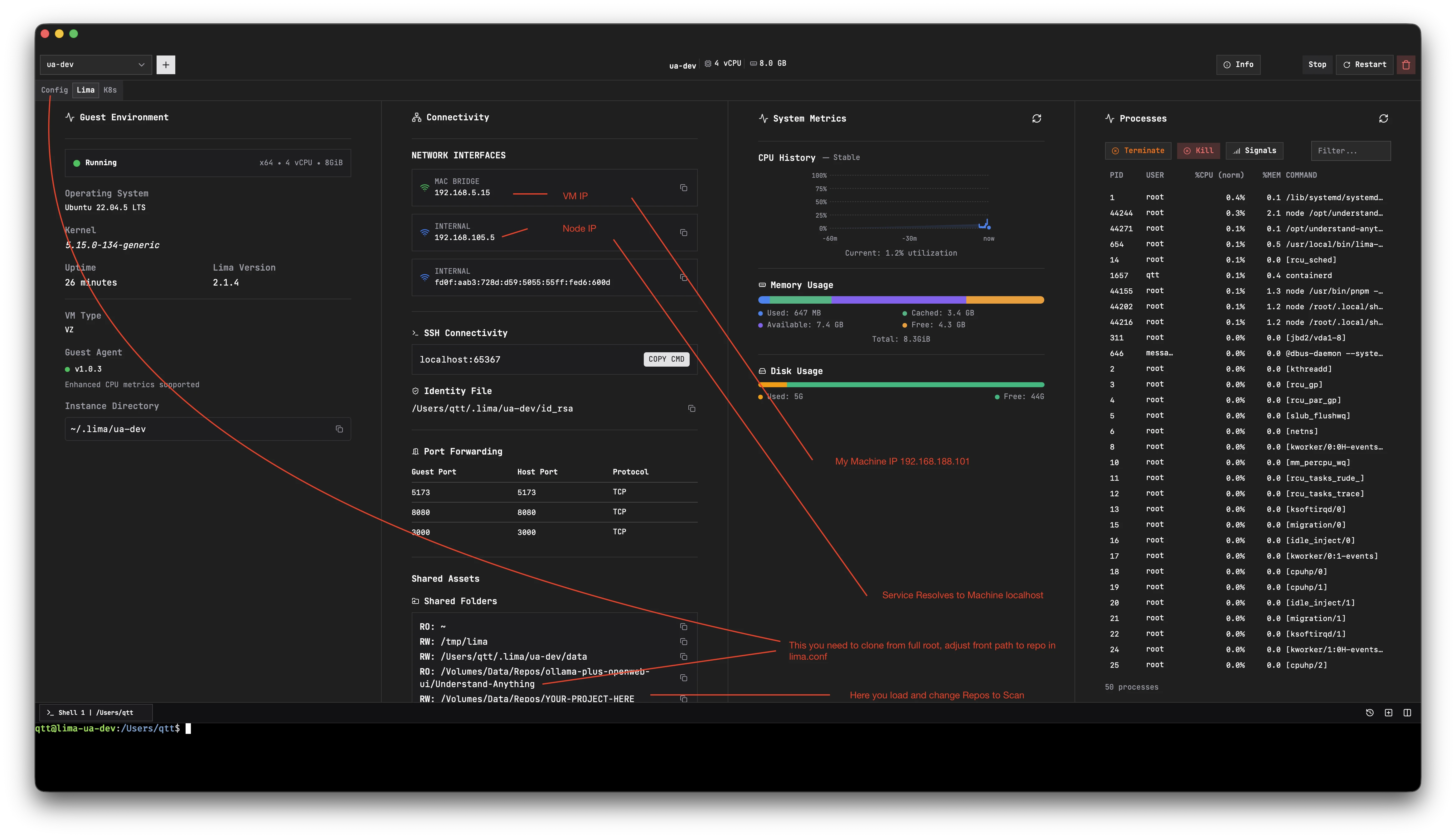
PVY.swiss created with PVYlima Desktop an Desktop Application, to benefit from the truly innovative Open Source Project lima and gives you as Home Lab User, as Developer and DevOPs Engineer some powerful ready to use solution, which solves many Problems, for:
- EVERYTHING! regardless what you deploy, runs local in your Browser using: http://localhost:port
- Compiling Software & Automation
- Run AI truly Secure (and entire AI Teams)
- Deliverer to your DevOPs and Software Developers a 1:1 Production Environment as their Local one
- No Vendor Lock-in - Pure freedom and creativity for true Innovation
- Streamlined DevOPs and Developer Environments
- Integrates with Exiting Workflows such as git, Xcode, Android-Studio whatever
- KEEPS your local Machine CLEAN, no more
NVME use 24and crashing other things locally - Immutable, isolated and repeatabe system
- Share a 15 kb small lima.conf over chat **to your collegagues, - 3 Mins later, the same VMs is running there too. With all the features and security measurements. Thats simply awesome.
¶ What is lima ?
lima is an open source projects, which leverages nowadays modern OS such as macOS or Linux Operating System, which natively runs in their own containers, for security reasons, and better OS Management.
¶ Official Project Site
https://lima-vm.io/docs/config/
Once installed to a system, it allows user with zero lag in CPU, RAM and Disk write/spead operations to run ANY Virtual Machine native on their local Machine, which also natively integrates into their Folder and System Navigation and IO Ports (if needed). lima stands for “linux-machines”. But can virtualize anything, headless or with X-11 Forwarding, but for X-11 you need to make some extras steps.
It let you manage a VM purely in a “declarative” File Context, means for each VM you manage everything delclarative in the lima.yaml file using any editor, or using the PVYlima Desktop App with built-in Config editor, linter for validation and a time saving Revesion Management with Revert or Apply Button.
But we also made UI Elements, which helps you define by Click and Save, for Mounts, Provisioning, Folder Shared, Copy2 Folers and Ports.
¶ PVYlima Desktop
We tweaked the lima.conf over PVYlima Desktop it a bit, so you can also install smaller VMs, such as 12GB, 15GB or 20GG beside their default 100GB Disk Size, but this is pureley declarative, we do not touch their core at all, which you install directly from their official resources:
¶ Install lima native Virtualization (5 minutes)
- macOS
brew install lima - linux:
brew install lima - Windows: follow their official documentation or our one
Note about Disk-Resize: Same as on Proxmox, VirtualBox, downsizing is not possible, resize to increase is possible. But since we are building VMs which are purpose driven, and you can map native Folders on your OS or Disks as Mount Points, it does not really matter.
¶ Install vmnet_socket binary (Critical Prerequisite)
You do a native install for vm_socket - not over brew, since its requires a own sudoer file and permission for security) and shall only be active, if you have a lima VM running. The path should point on macOS (similar on Linux) to: /opt/socket_vmnet/bin/socket_vmnet since its then also referenced in the lima network config file. make sure know your base / primary Network Inferface, which is usually eth0.
Its fully covered step by step, in our documentation.
¶ What it does ?
In combination, with our lima base config and our lima network config, it mapps any port you forward / expose on your local VM Machine (can be multiple VMs, Docker Container, PodMan Pods, Kubernetes Pods and their Service Web UI Interfaces automatically correct to your localhost:port.
This is not only true for web ui ports, but also for API Ports. Means you can test everything on localhost as it works in production. So no tweaks for Security on DevContainer, Podman Desktop or (if you used it) Docker Desktop. All you need from now onward is PVYlima Desktop and thats it.
¶ Everything on http://localhost:port-public
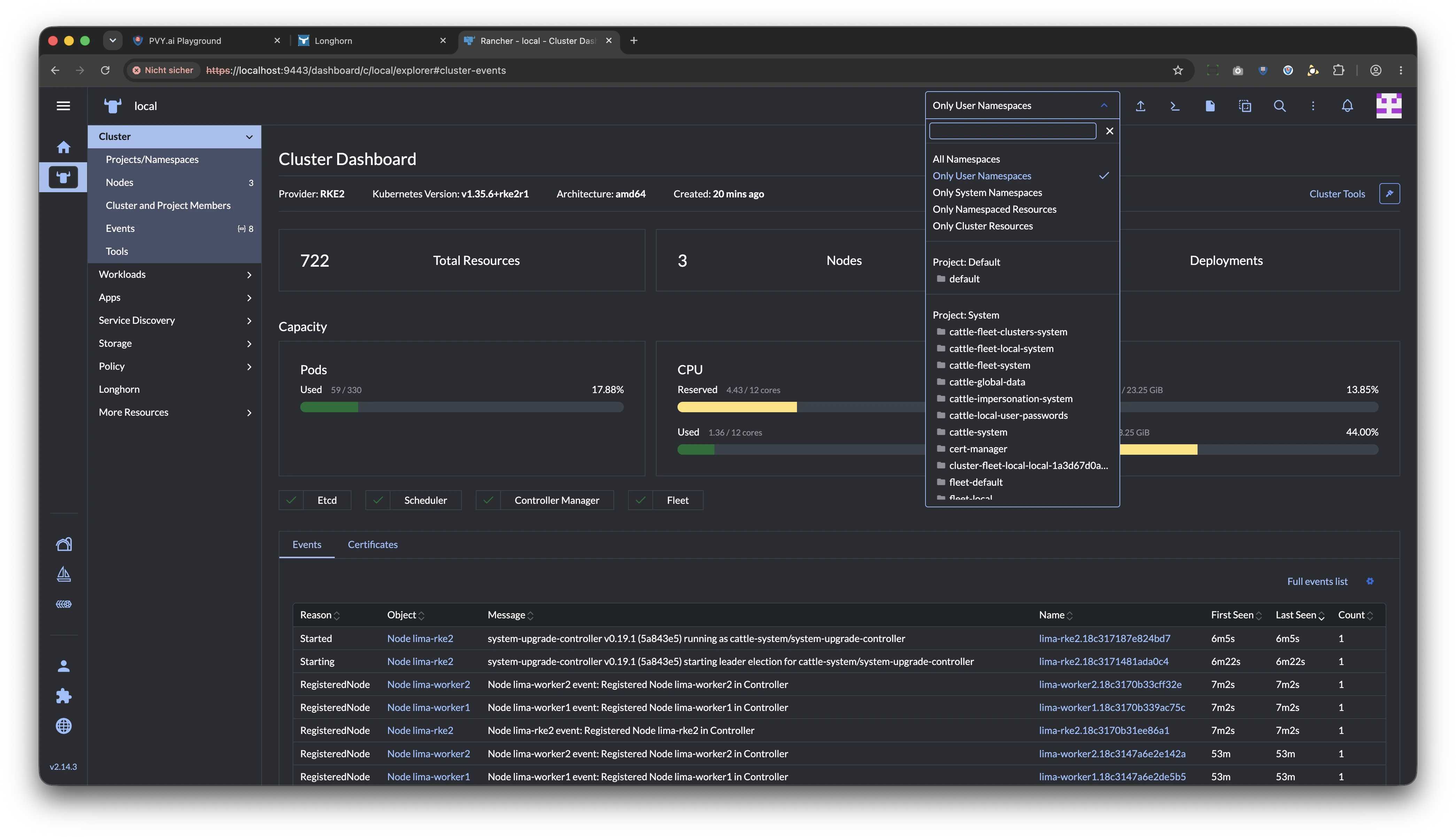
You are also able to run multiple vms which each has different Service or Docker Container simultanously with a full 3 Node (Suse Linux Rancher Premium RKE2) Cluster, and getting both, their Service Web UI for
¶ From the Suse Kubernetes Cluster
BTW its debian)
- Rancher UI Admin Interface -> https://localhost:9443
- Longhorn Block Storage Interface -> http://localhost:9500
- Deployed App Stack in Namespace "Staging-R14 PVYbusiness-OS -> https://localhost:33448 (nodeIP)
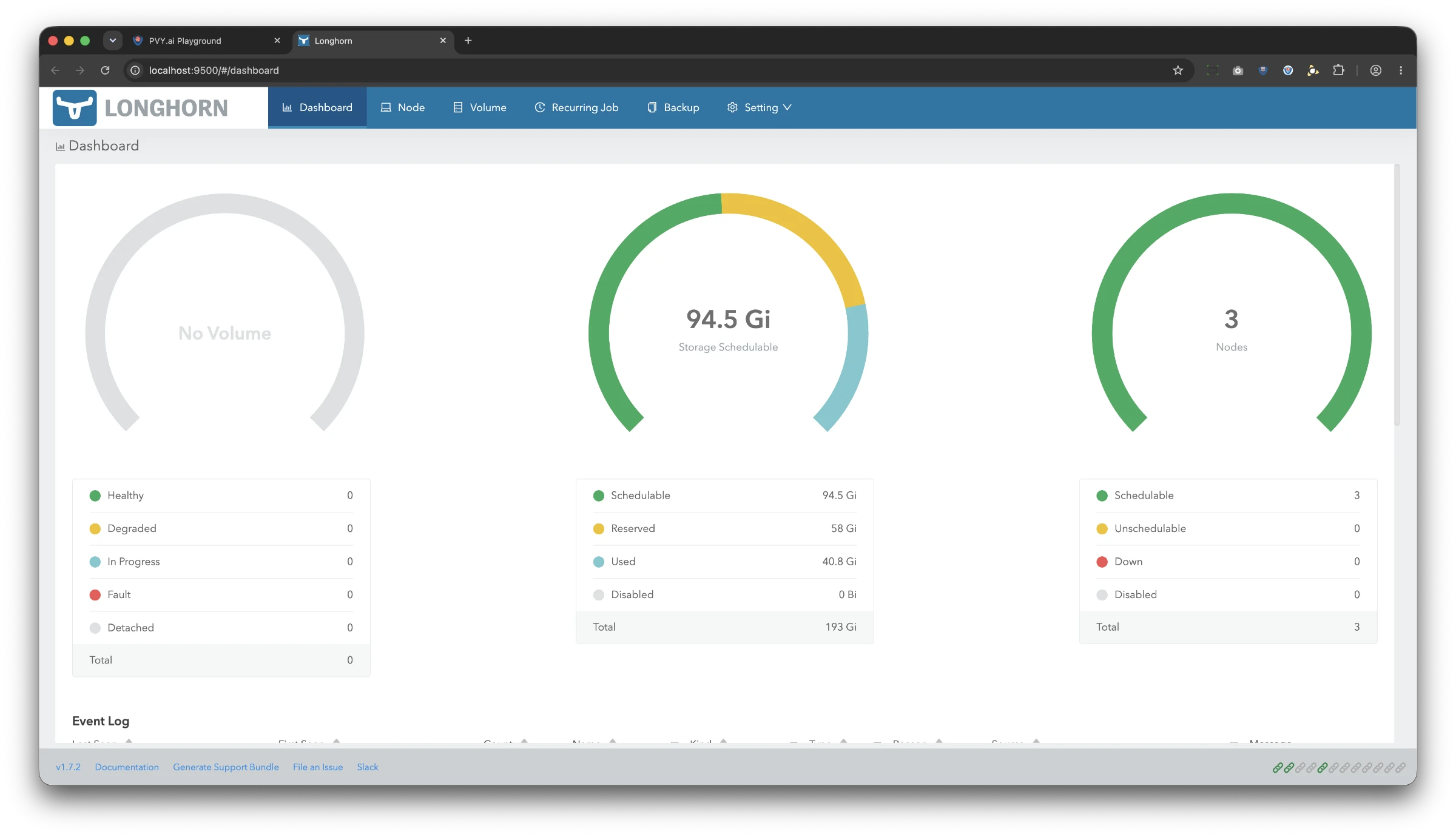
All Interaces are natively surved on your Browser Interface and Snappy as on a production-cluster. The share the samme Presets, Configs, just Replicas are being down scaled to each 1 - so you run multiple other VMs same time. Such as
¶ Ubuntu - LTES 22 - Understand-Anything
Modifed, enhanced for PVYai and OpenAPI compatible AI, from Open Source Project: Understand-Anything
inluding native support for bash/zsh Profiles, Plugins for Claude, Cursor, OpenCode Desktop, and more:
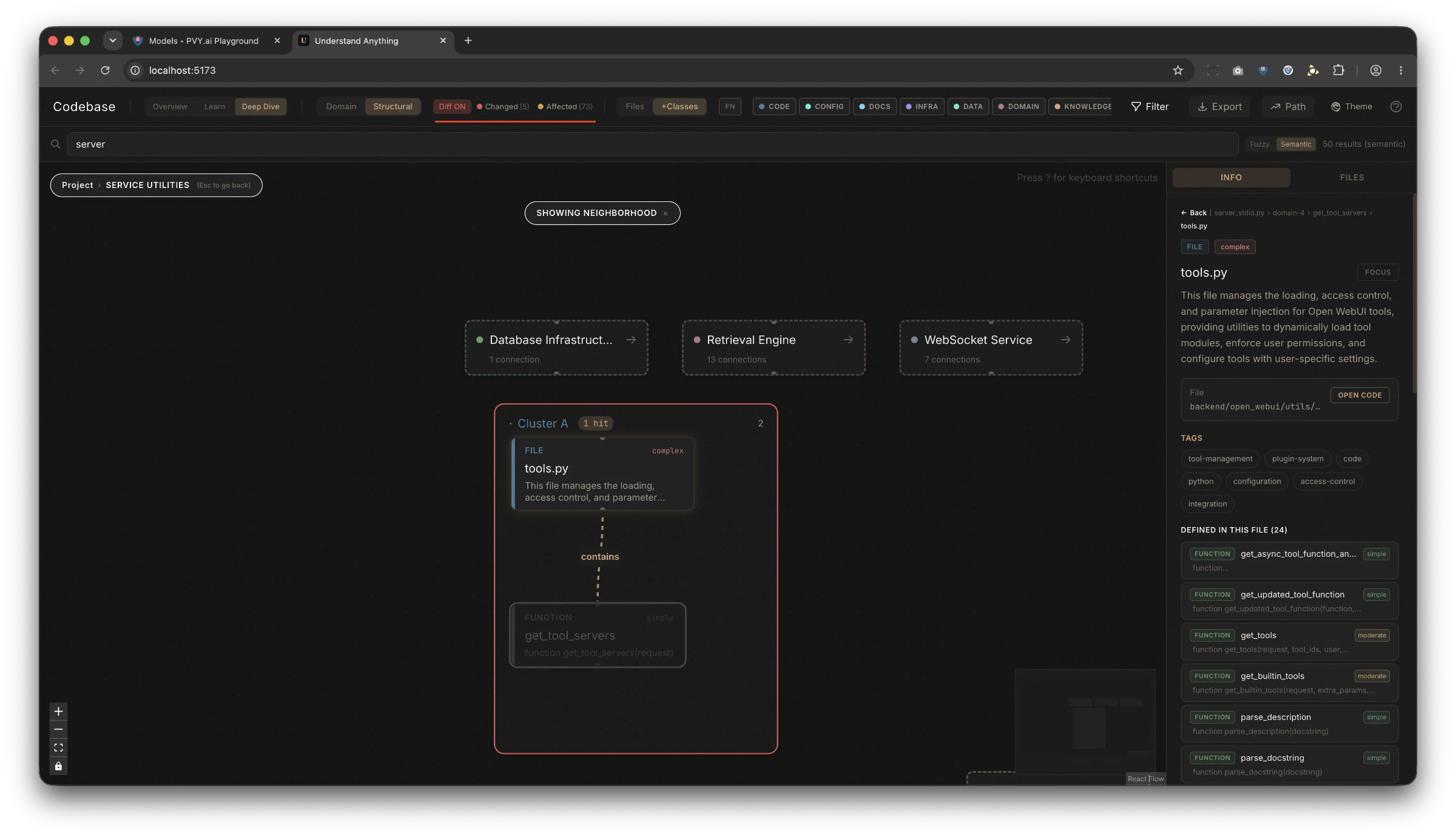
Deployed as native SystemD Service with Hooks, Scripts, (OpenAI Api compatible AI, PVYai SSE Stream API) and curl, and as, yes: Local MCP Service… Because your LLM won’t understand the Code Base and Implications even not with 2M Context Windows. But with Understand-Anything it does, including a Diff-Overlay for file changes, and which Files, Edges and Endpoints are being effected. gives your LLM a holistic overview:
- Web interface for Humans with LLM enriched Code/Repo/Domain & Logic Onboarding -> http://localhost:5173
- Health Check for Monitoring -<http://localhost:8080/health
- Status Check for Repo Index: curl http://localhost:8080/status
- curl -X POST http://localhost:8080/analyze
Graph View for Humans with wueries, both semantic, fuzzy, guided tour, visual fast connected to clusters, logic and how the thing really works together. Unless you forward one Port Double, but the System will warn you.
Query by Web UI manual, use curl, use api or bash / shell commands. And native MCP Tools for (PVYai Users) for parallel queries for your PVYai Models you use on OpenCode Desktop or PVYai Agent or Claude if you like.
None of these running VMs, with real hardened Staging or Production Images, interfer each other. And you can fully leverage also PVYai inside, outside, and our PVYlima Desktop Agent, to utilize our amazing Shell Tabs with Session Storage, by switching back and forth between running VMs.
¶ Benefits:
- We do not hear from our Developers: Oh - on my localhost it works - need to check why not on production
- Developers getting one Tool: “One for All”
- One config file for a VM - share and distribute it accross Team / Team Members
- Freedcom - Do what ever you want and are capable to do - or ask PVYai
- Want to make a Code and CISA/CIS Deployment Security Assement ?
Simply choose PVYai RedTeam VM from PVYlima Desktop, point the desired Code Repo, copy the SSH RSA Identity for local running Pod/Container or Service VM, and click on Start.
On the Shell Tap, enter pvai - say a sort hello - chose your PVYai Shared Memory Wing for Session Handover, (Cross Platform, Cross Endpoint, Cross Domain) say him: Beside of the mounted repo, I want after an Penetration Test which covers Level 1- Level 5, as you have in Plans. Write me a Message to PVYmessenger when Results are available.
And there you go. If any findings, ask PVYai to create you a “Session Handover” or “Note”, open your PVYai Agent or OpenCode Desktop in the right Repo, call the Handover, and let PVYai fix your holes. That easy.
and you will get it hardcore displayed on the Dashboard, seperated what is to address now, CVE Linking. Everything Local No Code Leaves your PVYai or Local Environment to the Cloud
¶ PVYlima Desktop & Podman Desktop
If you like Podman Desktop as we do and want to take the benefit with PVYlima Desktop, we got you covered.
Install the “Lima” Plugin in Podman Desktop, configure it to use as Podman Default Machine the VM “default” in ~/.lima/default.
The startup time of Podman Desktop App takes after 18-22 Seconds longer, but the VM executes with an efficiency increase of 18-22%, depending on RAM and CPU Settings. So, Win-Win.
But its also true, that you don’t need Podman Desktop or Rancher Desktop anymore, if you want to work with production grade deployment environments. PVYlima Desktop gives you everything.
¶ Read the docs
and dive into the details and learn what PVYbusiness-OS can do for you. We also have crafted PDF Manual, which explains you all things. You can download it here.
Explore the [Lima Setup (/en/pvyapps/pvylima/setup) Lima Setup
Its a matter for few minutes only.
Explore the PVYlima Desktop User Manual
Quick Video Tour - It’s simple to use
Explore the PVYlima VM Templates ready to use
For your customers, partners and devevelopers, we delivery you a few ready to go VM Templates, and the entire config which you can drag and drop to your lima conifg folder under ~/.lima including the network-config, so you can run ANYTHING on your your http://localhost.
Copy the Code - change the paths locally - click on start. And of course - our Base lima-config and network config files for your local directoy: ~/.lima on your computer, ready to go.
So its also for early IT beginners a complete no-brainer to use our crafted stuff.
- PVY UA - Understand Anything
- PVY CIS-Dockerhost
- PVY CIS-Kubernetes
- PVY CIS-Webservice
- PVY Compiler VM
- PVYai Red-Team VM
To see this part, you have to be logged in.