¶ PVYvault Organisation - Groups - Vault & User Management
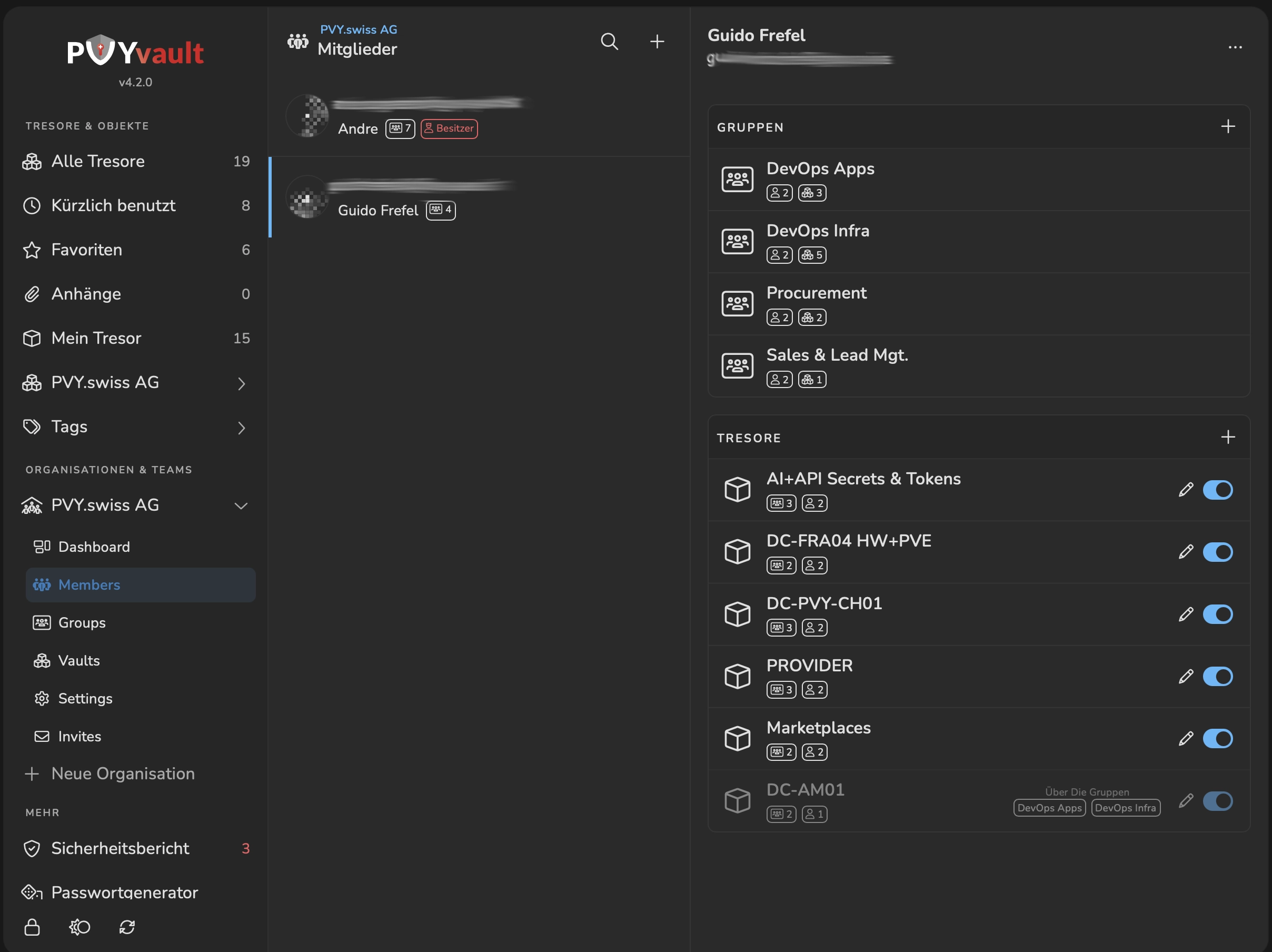
PVYvault offers by default to freshly signed up Domain Users a Personal “MyVault” where User creates his own Vault Items, not shared with anyone. If he is later part of an Organisation and the Organisation has shared Vaults with him organiszed and maintained by the Organisation Members, Group Admins, he can also shift an Vault Item to an shared Vault within the Organisation.
¶ Organisation
Any User can create an Organisation. Only owner of an Organisation can create Groups and Organisation Vaults. An Organisation Vault can shared automatically to all Group Members of a Certain Group. The Group needs to have at least 1 Member. You can define the Access to Certain Vaults on the Group Level, by adding a Vault Access to this Group, or if you browsing the Vault, you can also add from Vault Level particular Users or Groups to this Vault.
Vaults owned by an Organisation can only be shared with other PVYvault Users, if they are already part of this Organisation.
Pro Tip: We recommend that the creation of any Organization is being made with your Organization PVY-ID SysAdmin User. This simplyfies a later Leave Management of Users who may own Organization. Learn more about Organization Administration in our PVYvault Administrator Portal.
¶ Workflow & Security
Users can only be invited to an Organisation by the Owner of this Organisation. The Workflow includes some Security Steps, but beside of a Single User, you can make a Batch Operation of adding up to 50 PVYvault user, simply by adding their E-Mail Address to the Invite Form. Once one or all E-Mail Addresses are being added, you can invite this or these users to your Organisation. They will receive an E-Mail with an Invite and Join Button.
By sending out the Invite, the PVYvault will give you an Confirmation Code in a Modal Popup and Copy Button. This Code is after your Invited Users pressed on the Join Link required, to finalize the step of Joining the Organization. So you need to send this Code over PVYmessenger for example to the Participiants of these Users you have invited.
(Hint: You can make in PVYmessenger or any other Messenger a new Channel: PVYvault Onboarding where they can access, and you share the Code there per each Operation.)
Once they finalized the Joining Process, the Organisation Owner sees these Users below the Organizaton Dashboard in the Menu Members , where they need to be confirmed over an Button as last step. This Prevents, that if you mistakenly added an User by Email, which completed the Organization Joining Process, but you finally don’t want this User in, to cancel this on the very last moment.
Once Confirmed, they are officially onboarded and can be added to Groups and inerhit the Groups Vault Access Permission of Existing Vaults and new upcoming Vaults allocated to this Group.
¶ Vault and Group Assigning
You can also add partical Groups or Members straight on an existing Vault, means a User who is confirmed as Member of an Organization doesn’t need to be Member of an Particular Group, you can add a specific user also directly to vault.
All Vault Users logged in in active unlocked Session seeing the changes immediately.
¶ Organisation Management Possibilities
If you are a smaller company, let’s say 25 Users in your Organization, you are just fine by adding as Organization your Company Name and manage your Groups, Users and Vaults there.
If you are a larger, maybe geographical distributed Organisation, you can also overcomplicate it by adding multiple Organization like in the Traditional Branch Management:
-
MyOrg Switzerland
-
MyOrg Germany
-
MyOrg USA
-
MYOrg China
-
MyOrg Russia
and fine tune it with the Structure as you like over Groups/Teams. Please note, that any Vault or Vault Item can be shared only within one Particaular Organization. But one PVYvault User can be invited and joined to more than Organization. This opens as well a perfect Vault-Item and Vault orchestration for larger Organizations, who relay on external fullfillment partners, such as Managed Service Providers.
¶ Handling of External PVYvault Users
You can let external partners to signup on your PVYvault over their Standard E-Mail Address and Invite them afterwards to your Organization and Specific Vaults they need to have access to it. The Only thing you have to issue is, PVYvpn Access with Role “External” and grant Access only to the Node PVYvault.
That’s the only reason you have two Option on the Login Form of PVYvault. Using PVY-ID or External one. Please remember, without granted PVYvpn Access, no outside People can access and signup on your PVYvault.
¶ Export Restrictions for Organization Shared Vaults
Please note, that a joined User to an Organization will be able to Use those Shared Vault Items over the allocated Groups or Vault Permission, can modify and update it. The built-in History and Versioning allows everyone to see the entire History on changed Data Field Records, Retrieve those or in worst case, to Roll-back to an previous Version of the Credentials or Data Field Values.
If a user use the Export Feature in the Menu “Tools” he can export his personal MyVault and any Shared Vaults he is assigned. While this fine on a Family Deployment there are additional Options for Organizations:
In Version 4.4 of the PVYvault Administrator Panel, you can restrict this on Account or Group Level. There is a flag, that you can restrict “Allow Export MyVault only”. If the Checkbox is set as true, the particular User can export only his own personal MyVault Items. Nothing else. And this has to be granted by Law in EU27, Switzerland among other Countries, due GDPR Policies and local Law.
¶ Group Access Level
Since Vaults can be assigned to an User or an Group and Vault Members are inerhitting the Group Settings within Organizations, you can define on Group Level Default Access Level Rules such as:
- Read only
- Read & Write
- Read, Write, Export
¶ Leave Management
If a particular User is leaving your Organization, you may want to remove him as first action from shared Organization Vaults and Groups, but no delete him entirely.
To do so, you log into the PVYvault Administrator Portal, search and open either the Organization he is allocated or for the User itself, and you remove the Binding / Association for this particular User with the Organization. Doing so, he keeps his Account and has Access to his Personal “MyVault” only.
Please note, you should never Remove or Delete the “Organization Owner User” from an Organization.
¶ Leave Management via PVYcentral
To Learn more about “Leave Managemnt” in General, visit our Documentation about PVYcentral.