¶ Core Workflow & TUI Reference
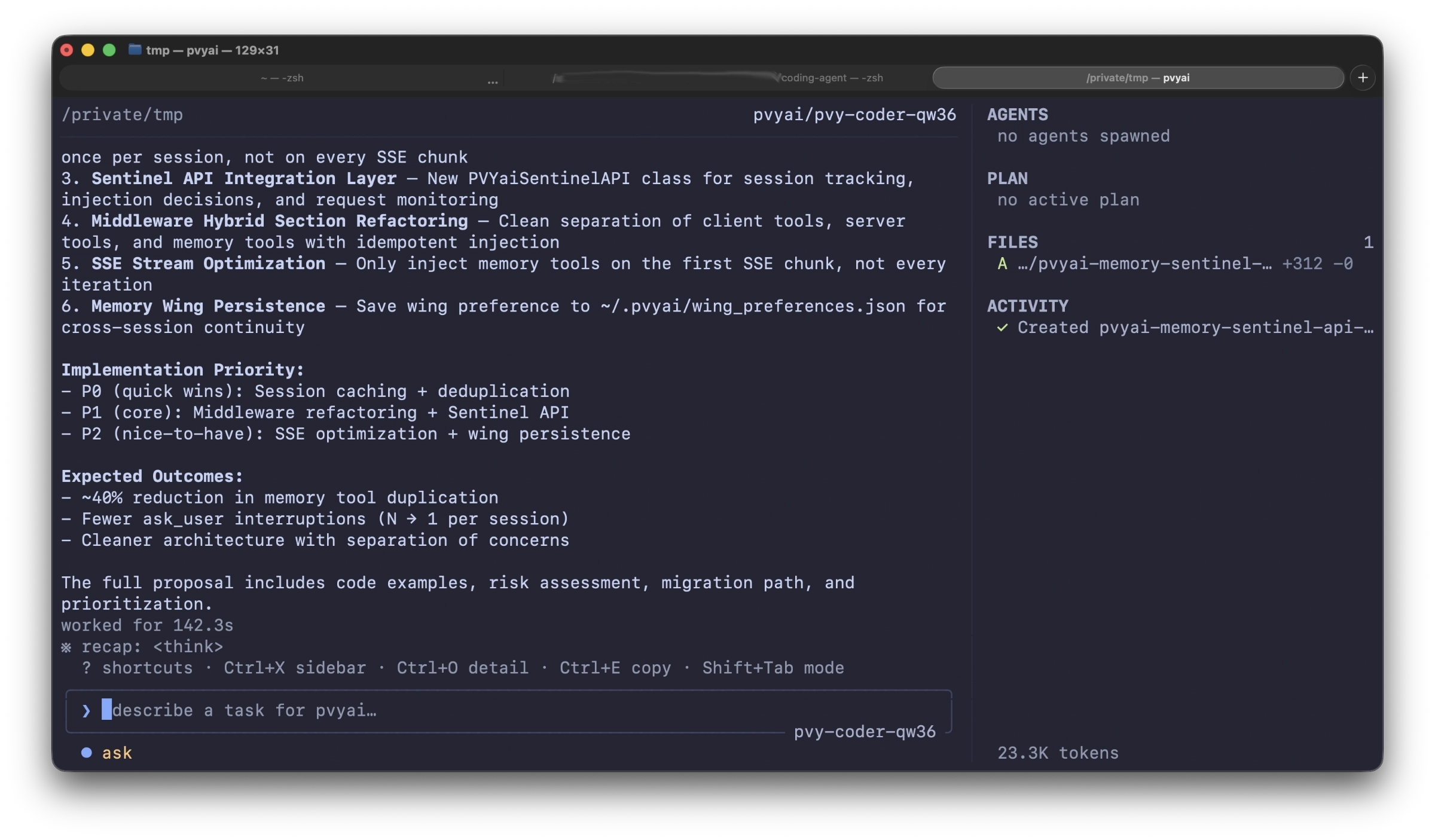
PVYai Agent runs as a terminal user interface (TUI) built with Bubble Tea. It has two modes: alt-screen (full-screen, default) and inline (native scrollback, used when the terminal doesn’t support alt-screen). This chapter covers everything you interact with in the TUI.
¶ The TUI Layout
┌─────────────────────────────────────────────────────────────────┐
│ main /feature-branch · claude-sonnet-4.5 · 9.4k/200k (4.7%)    │ ← Title bar
├──────────────────────────────────────────────┬──────────────────┤
│                                              │                  │
│  you: Add a --version flag to main.go        │  PLAN            │ ← Context sidebar
│                                              │  ◉ Add flag      │   (Ctrl+X toggle)
│  PVYai: Done — added `--version` flag.       │  ◯ Update README │
│                                              │  ◯ Add test      │
│  ...                                         │                  │
│                                              │  SPECIALISTS     │
│                                              │  ◌ explorer      │
│                                              │    2 tools · 1k  │
│                                              │                  │
├──────────────────────────────────────────────┴──────────────────┤
│ > _                                                            │ ← Composer
│ ? shortcuts · Ctrl+X sidebar · Ctrl+O detail · Ctrl+E copy     │ ← Idle hint
└─────────────────────────────────────────────────────────────────┘
¶ Title bar segments
| Segment | Content | Drops at |
|---|---|---|
| Branch | Git branch name | < 100 cols |
| CWD | Working directory (abbreviated) | < 80 cols |
| Model | Provider + model | Always shown |
| Context | Token usage / context window | < 80 cols |
¶ Context sidebar (Ctrl+X)
The right-hand sidebar shows contextual information while you’re in a conversation:
- PLAN: Live task list from the
update_plantool - SPECIALISTS: Running specialist sub-agents with live progress
- FILES: Touched files in the current session
The sidebar auto-hides when it has nothing to show (no plan, no specialists, no touched files). You can force-hide it with Ctrl+X — this sets your show/hide preference. The sidebar reappears when content arrives, unless you’ve explicitly hidden it.
¶ When the sidebar toggle works
Ctrl+X has effect only when ALL of these conditions are met:
| # | Condition | What blocks it |
|---|---|---|
| 1 | Alt-screen mode (full-screen) | Inline mode |
| 2 | Terminal ≥ 80 columns | Narrow terminal |
| 3 | Active conversation (not home screen) | No transcript yet |
| 4 | No modal/picker open | Setup wizard, model picker, etc. |
| 5 | Not in subchat | Inside a specialist drill-in |
| 6 | Not in full-screen transcript | Ctrl+O detailed view |
If the sidebar has content to show (plan, specialists, touched files), toggling it visible will display it. If it has no content, the toggle records your preference but the sidebar stays hidden until content arrives.
¶ Keyboard Shortcuts
¶ Global
| Key | Action |
|---|---|
Ctrl+X |
Show/hide the context sidebar |
Ctrl+P |
Expand/collapse the plan panel |
Ctrl+T |
Cycle reasoning effort (auto → low → medium → high → auto) |
Ctrl+E |
Release the mouse (enables text selection & copy) |
Ctrl+O |
Toggle detailed (full-screen) transcript view |
Ctrl+C |
Cancel current run or exit PVYai |
Ctrl+D |
Exit on empty composer / scroll up in transcript |
Shift+Tab |
Cycle permission mode (ask → auto → unsafe) |
? |
Show keyboard shortcut overlay (on empty composer) |
Enter |
Send prompt (or confirm in modals) |
Esc |
Close overlay/picker/modal |
PgUp / PgDn |
Scroll transcript by a page |
↑ / ↓ |
Scroll transcript, navigate in popups, move cursor in multi-line input |
¶ Composer (Emacs-style, when focused)
| Key | Action |
|---|---|
Ctrl+B |
Move cursor one character left |
Ctrl+F |
Move cursor one character right |
Ctrl+A |
Move cursor to beginning of line |
Ctrl+E |
Move cursor to end of line |
Ctrl+U |
Delete from cursor to beginning of line |
Ctrl+K |
Delete from cursor to end of line |
Ctrl+W |
Delete the word before the cursor |
Alt+B |
Move cursor one word left |
Alt+F |
Move cursor one word right |
Alt+D |
Delete the word after the cursor |
Ctrl+J |
Insert a newline (for multi-line input) |
Shift+Enter |
Insert a newline (for multi-line input) |
Tab |
Accept autocomplete suggestion / move to next in popup |
¶ Configurable bindings
All global keybindings are configurable via config.json:
{
  "keybindings": {
    "toggleSidebar": "ctrl+x",
    "toggleDetailed": "ctrl+o",
    "toggleMouse": "ctrl+e",
    "cycleReasoning": "ctrl+t",
    "togglePlan": "ctrl+p"
  }
}
Supported modifiers: ctrl, alt (or option), shift. Example: "option+b" for Alt+B.
¶ Slash Commands
Type / in the composer to open the command autocomplete. Commands are case-insensitive.
¶ Session management
| Command | Description |
|---|---|
/new |
Start a new session |
/resume |
Resume a previous session (opens session picker) |
/rewind |
Rewind to a previous point in the conversation |
/edit |
Edit and re-submit your last prompt |
/copy |
Copy the last assistant response to clipboard |
/export |
Export the transcript to a file |
/turns |
Show or set the max turns for the current session |
/retry |
Retry the last run with the same prompt |
/self-correct |
Trigger self-correction on the last output |
¶ Model & provider
| Command | Description |
|---|---|
/model |
Open the model picker |
/model <id> |
Switch to a specific model (e.g. /model claude-sonnet-4.5) |
/model list |
List all available models |
/model <mode> |
Switch to a mode preset (e.g. /model deep) |
/effort |
Open the reasoning effort picker |
/effort <level> |
Set reasoning effort (none, low, medium, high, max) |
/provider |
Open the provider wizard |
/theme |
Open the theme picker |
¶ Context & tools
| Command | Description |
|---|---|
/plan |
Show the current plan |
/context |
Show context budget usage |
/compact |
Trigger context compaction |
/image |
Attach an image to the next prompt |
/tools |
List available tools |
/mcp |
Open MCP manager |
/skills |
Open the skills picker |
/<skill-name> [args] |
Invoke a skill directly |
/spec <task> |
Start a spec-mode draft |
¶ Runtime
| Command | Description |
|---|---|
/permissions |
Show current permission mode |
/ps |
Show running specialists/tasks |
/stop |
Stop the current run |
/sandbox-setup |
Configure sandbox (Windows only) |
/add-dir <path> |
Grant write access to an additional directory |
/bash |
Open a bash session |
¶ Meta
| Command | Description |
|---|---|
/help |
Show help (same as ? overlay) |
/clear |
Clear the transcript |
/exit |
Exit PVYai |
/config |
Show resolved configuration (secrets redacted) |
/debug |
Toggle debug mode |
/doctor |
Run health checks |
/init |
Investigate the repository (agent-generated context map) |
/transcript |
Show transcript view options |
¶ Custom commands
You can define your own slash commands as markdown files in .pvyai/commands/ (project-level) or ~/.config/pvyai/commands/ (user-level). See [[04-skills|Skills]] for the full format.
¶ Permission Modes
PVYai has four permission modes that control how much autonomy the agent has:
| Mode | Behavior | How to set |
|---|---|---|
| ask (default) | Every side-effect tool call prompts for approval | Shift+Tab once, or start with --permissions ask |
| auto | Side-effect calls are auto-approved (still sandboxed) | Shift+Tab twice, or --permissions auto |
| unsafe | No prompts, no sandbox wrapping (raw execution) | Shift+Tab three times, or --permissions unsafe |
| spec-draft | Read-only (used during /spec drafting) |
Automatic during spec mode |
¶ What triggers a permission prompt?
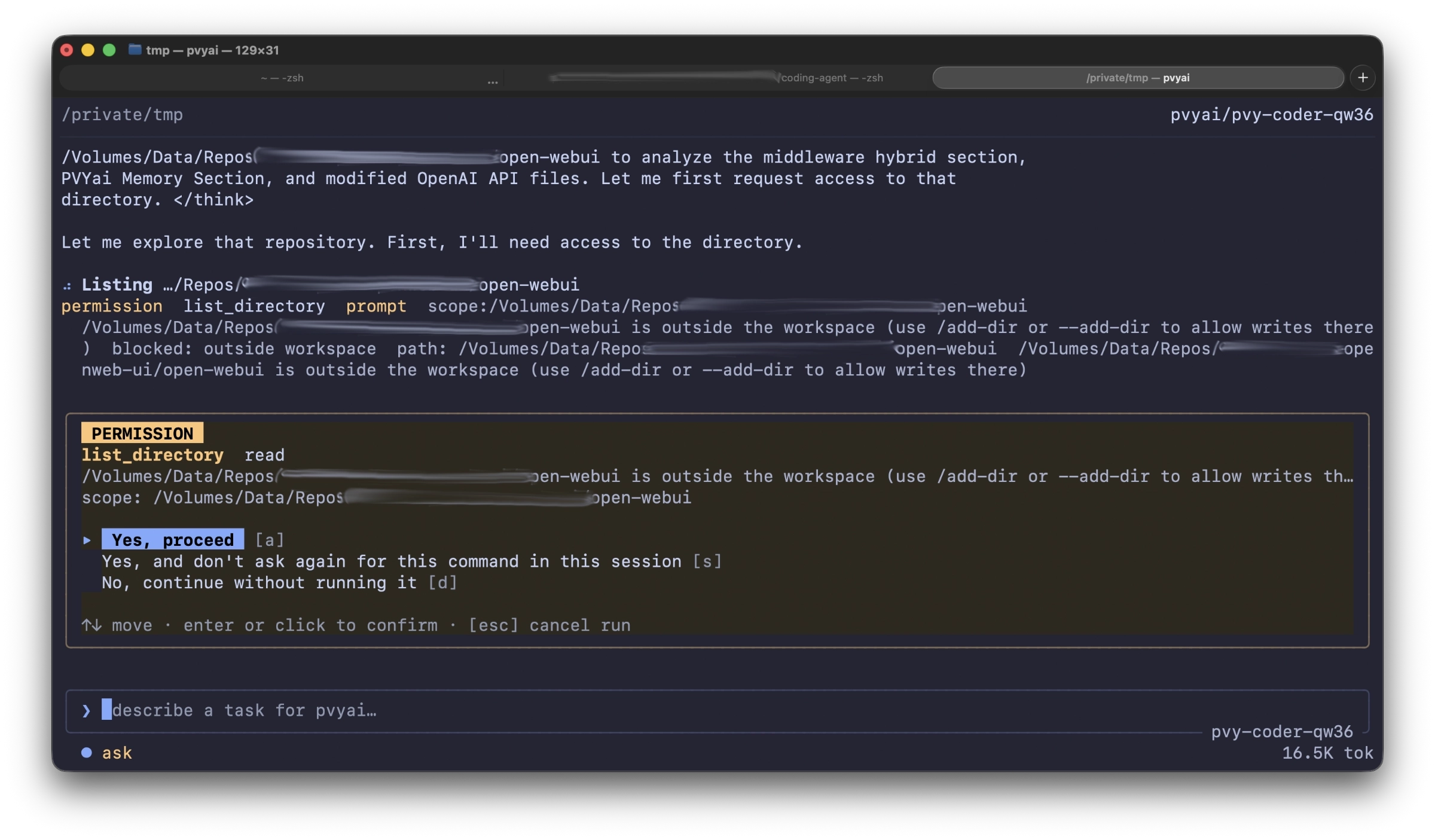
| Action | ask mode | auto mode | unsafe mode |
|---|---|---|---|
read_file |
Auto-allow | Auto-allow | Auto-allow |
list_directory |
Auto-allow | Auto-allow | Auto-allow |
grep / glob |
Auto-allow | Auto-allow | Auto-allow |
write_file |
Prompt | Auto-allow | Auto-allow |
edit_file |
Prompt | Auto-allow | Auto-allow |
exec_command / bash |
Prompt + sandbox | Auto-allow + sandbox | Auto-allow (no sandbox) |
web_fetch |
Prompt | Auto-allow | Auto-allow |
Task (specialist spawn) |
Prompt (auto-allow if read-only) | Auto-allow | Auto-allow |
¶ Destructive command protection
Regardless of permission mode, the sandbox engine classifies every shell command for risk:
- Destructive patterns (
rm -rf /,mkfs,dd if=, recursivechmod 777of root) → always denied (even in unsafe mode) - High-risk patterns → prompt for approval in all modes
- Normal commands → follow the permission mode
This is the coding agent’s own guardrail layer. When routed through the PVY.ai Platform Open WebUI proxy, an additional layer — the PVYai Sentinel — can intercept destructive commands at the SSE-stream level before they reach the TUI. See evals and self learning for Sentinel integration details.
¶ Notifications
PVYai can notify you when a run completes or when it needs your input — via terminal bell, desktop notification (OSC-9), or a webhook to your Matrix/PVYmessenger channel.
¶ Notification modes
| Mode | Behavior | How to set |
|---|---|---|
off |
No notifications | --notify off or "mode": "off" |
bell |
Terminal bell (BEL \x07) |
--notify bell or "mode": "bell" |
notify |
Desktop notification (OSC-9 escape) | --notify notify or "mode": "notify" |
both |
Bell + desktop notification | --notify both or "mode": "both" |
¶ Focus modes
Focus mode controls when notifications fire based on terminal focus:
| Focus mode | When it fires |
|---|---|
unfocused (default) |
Only when the terminal is NOT focused |
always |
Always fires, regardless of focus |
focused |
Only when the terminal IS focused |
¶ Events
Two events trigger notifications:
| Event | Message | Trigger |
|---|---|---|
Completion |
PVYai: ready |
A turn finishes (after streaming done) |
AwaitingInput |
PVYai: needs input |
Permission prompt or ask_user request arrives |
¶ Webhook notifications (Matrix / PVYmessenger)
When a webhook URL is set via PVYAI_NOTIFY_WEBHOOK_URL, notifications are also POSTed to that endpoint. This integrates with the PVYmessenger whapi bridge for Matrix delivery.
See Getting started with PVYai Agent -> Matrix / PVYmessenger Notification for full setup instructions.
Quick setup:
# Set the webhook URL (env var — contains the bridge token)
export PVYAI_NOTIFY_WEBHOOK_URL="https://whapi.pvy.im/api/v1/matrix/hook/d4nxw9Y8ZMdV83AXl5QKRUKzoM8OH3Z0q24zE5ZBAhCIUPd0OeNL9OOczo7bbFNX"
// config.json — formatting options (URL stays in env)
{
  "notify": {
    "mode": "both",
    "focusMode": "unfocused",
    "webhook": {
      "format": "html",
      "displayName": "PVYai Agent",
      "msgtype": "notice"
    }
  }
}
The webhook POSTs a JSON payload to the whapi bridge, which forwards it to your Matrix room. With format: "html", the message renders with bold/italic formatting in Matrix.
¶ Webhook env vars
| Variable | Purpose |
|---|---|
PVYAI_NOTIFY_WEBHOOK_URL |
Webhook destination URL (required for webhooks) |
PVYAI_NOTIFY_WEBHOOK_SUMMARY |
One-line run summary in payload |
PVYAI_NOTIFY_WEBHOOK_FORMAT |
"plain" or "html" (overrides config) |
PVYAI_NOTIFY_WEBHOOK_DISPLAY_NAME |
Sender name shown in Matrix (overrides config) |
PVYAI_NOTIFY_WEBHOOK_AVATAR_URL |
Sender avatar URL in Matrix (overrides config) |
PVYAI_NOTIFY_WEBHOOK_MSGTYPE |
"notice" or "emote" (overrides config) |
¶ The Composer
The composer is the input field at the bottom of the TUI. It supports:
- Multi-line input:
Shift+EnterorCtrl+Jto insert newlines - Autocomplete:
Tabto accept suggestions; slash commands,@mentions, and file paths - File attachments: Drag-and-drop images, or use
/imageto attach screenshots - Paste previews: Pasted content shows as a
[Paste #N]chip; the agent sees the full content when sent - Attachment chips:
[Image #1],[Doc #1]— pressBackspaceon an empty composer to remove the last attachment
¶ @-mentions
Typing @ at the start of a line triggers mention autocomplete:
| Mention | Effect |
|---|---|
@<specialist-name> |
Delegates the prompt to a specialist sub-agent (e.g. @explorer find the auth logic) |
@<file-path> |
Attaches a file reference (some shells support this) |
¶ The Transcript
The transcript is the main chat area showing the conversation history. It renders:
- User messages: Bold, prefixed with
you: - Assistant messages: Markdown-rendered with syntax highlighting
- Tool calls: Collapsible cards showing tool name, arguments, and results
- Specialist cards: Status-tinted cards with live progress for delegated sub-agents
- Permission prompts: Inline cards with approve/deny buttons
- Plan updates: Visual plan panel showing task progress
¶ Scrolling
| Key | Action |
|---|---|
PgUp |
Scroll up by one page |
PgDn |
Scroll down by one page |
Ctrl+U |
Scroll up by half a page (when composer is empty) |
Ctrl+D |
Scroll down by half a page (when composer is empty) |
↑ / ↓ |
Scroll by one line (when not in a popup) |
¶ Detailed transcript (Ctrl+O)
Press Ctrl+O to toggle the full-screen detailed transcript view. This shows the complete, untruncated transcript with all tool call details, arguments, and raw output — useful for debugging or reviewing what the agent did.
¶ Idle Hints
When the composer is empty and the agent is idle, a faint hint line appears at the bottom:
? shortcuts · Ctrl+X sidebar · Ctrl+E copy                    ← 80-99 cols
? shortcuts · Ctrl+X sidebar · Ctrl+O detail · Ctrl+E copy · Shift+Tab mode   ← 100+ cols
? shortcuts                                                    ← 58-79 cols
(empty)                                                        ← < 58 cols
¶ Session Management
¶ Session lineage
Every conversation is a session. Sessions are stored under ~/.local/share/pvyai/sessions/ with a lineage tree:
session_001 (root)
├── session_002 (fork from turn 3)
│   └── session_004 (fork from turn 1 of session_002)
└── session_003 (fork from turn 5)
Just in case you didn’t knew, also OpenCode Desktop, Codex or Claude are storing their Sessions in the same user directories: ~/.local/share/opencode/storage/message as DevContainer or Podman Desktop too.
The storage persists both application upgrades to newer versions and application removals. In case you want to clean up, you know where.
¶ Key commands
| Command | Action |
|---|---|
/new |
Start a fresh root session |
/resume |
Resume a previous session (opens a picker) |
/rewind |
Rewind to an earlier point in the current session |
/edit |
Edit your last prompt and re-run from that point |
/retry |
Re-run the last turn with the same prompt |
pvyai exec --resume <session-id> "continue" |
Resume from the CLI |
pvyai sessions |
List sessions from the CLI |
pvyai search "query" |
Search across all sessions |
¶ Linked sessions
Some operations create linked sessions automatically:
| Operation | Session kind | Link |
|---|---|---|
/spec <task> |
spec-draft |
→ spec-impl (on approval) |
@specialist / Task tool |
specialist |
Parent → child |
| Swarm spawn | swarm-member |
Orchestrator → member |
/rewind |
fork |
Original → fork |
You can drill into a specialist’s child session from the transcript card (click or Enter).
¶ Worktree Isolation
For parallel work without interference, PVYai Agent can create isolated git worktrees:
# One-shot: create a worktree and run the agent in it
pvyai exec -w refactor-task "Refactor the authentication module"

# Standalone: create the worktree first, then run in it
pvyai worktrees prepare --name refactor-task
cd ~/.local/state/pvyai/worktrees/pvyai-worktree-<repo>/refactor-task
pvyai
The worktree is a detached HEAD at the current commit — a clean copy of your repo where the agent can make changes without touching your working tree. See Team of Agents for multi-agent worktree patterns.
¶ Next Steps
- Plans & Specs — Plan-driven development with
update_planand/spec - Model selections & Providers — Deep dive into the model picker and provider system
- Team of Agents — Running multiple agents in parallel